I use local rank maps every day with my clients.
They give us a much better picture of where a business shows up on Google Maps across its local area for a specific search, instead of one number that doesn’t tell you much.
But the most useful thing about a rank map isn’t the colors.
It’s what the map tells me to do next, including what content we need to create for the client’s Google Business Profile and website.
Here’s how rank maps work, how I read them, and how I turn one into a plan.
What Is a Local Rank Map?
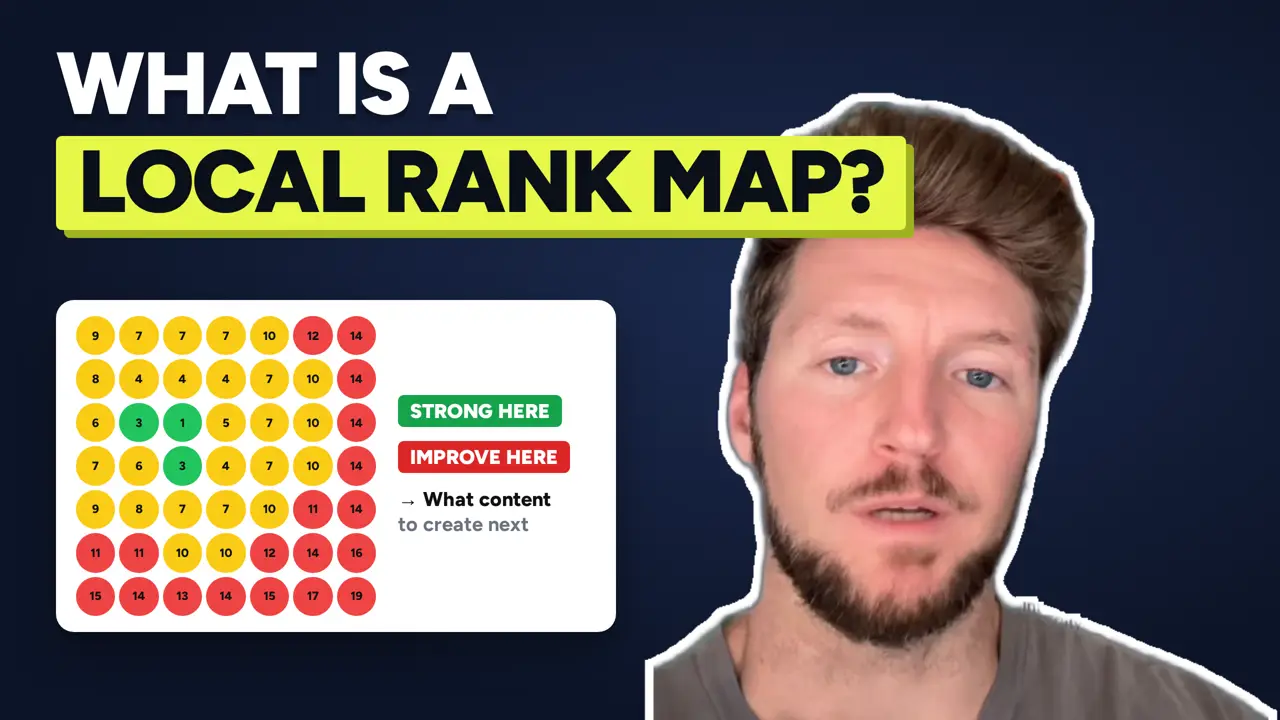
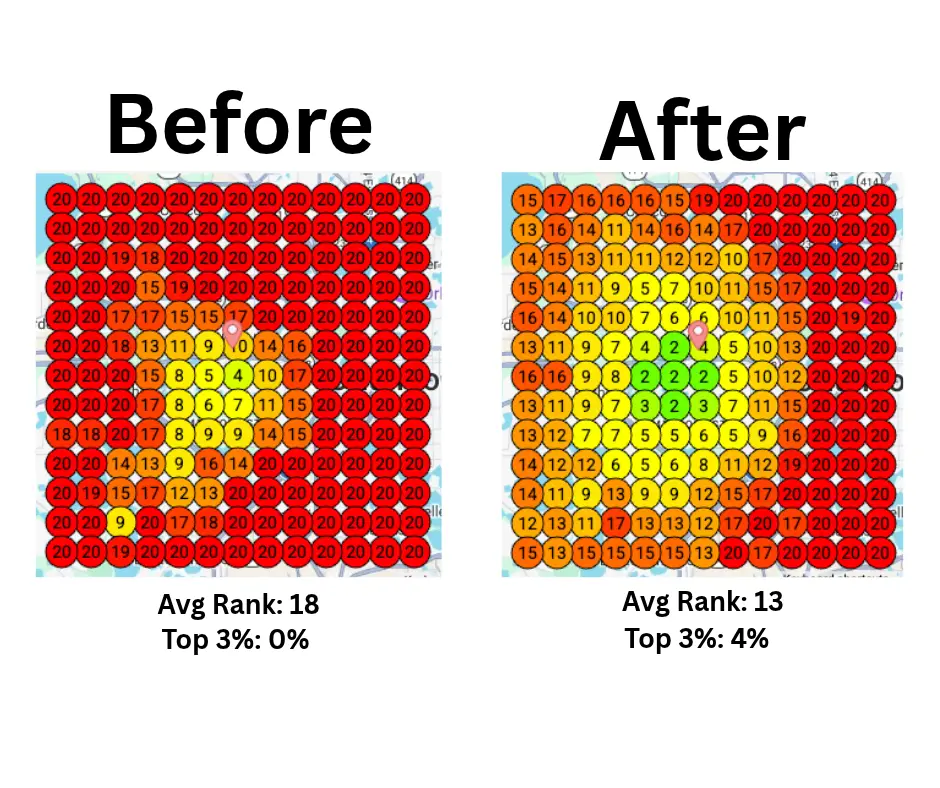
A local rank map (also called a geo grid or heat map) shows where a business ranks on Google Maps for one search term at many points across its service area.
The map is laid out as a grid of points. Each point shows the business’s position in the results for someone searching from that spot.
- Green points with low numbers mean the business is showing up near the top, often in the top three.
- Yellow and orange points mean it’s showing up, but lower on the list.
- Red points, or “20+”, mean it’s barely visible or not showing up in the first 20 results at all.
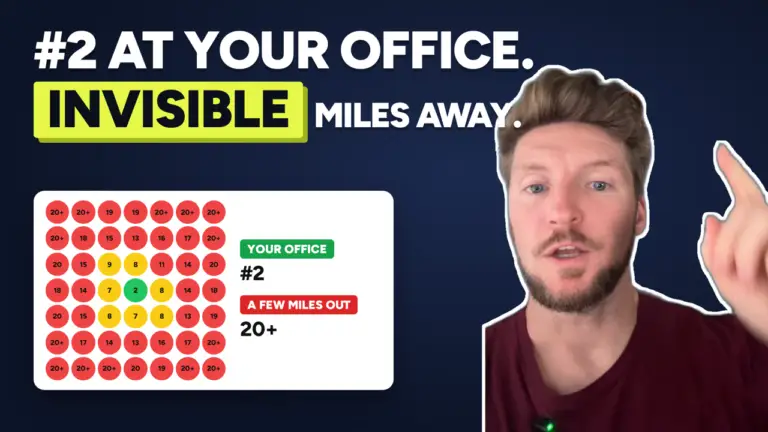
The reason this matters is that local rankings change depending on where the searcher is. A business can be in the top three in one neighborhood and nowhere a few miles away.
A rank map shows you all of that on one screen.
The Two Questions a Rank Map Answers
1. Where am I strong, and where do I drop off?
The first thing I look at is the overall pattern.
Most businesses have a cluster of green around their location that fades out as you move away. The question is how big that cluster is and where it ends.
That lets me say, “Okay, we’re ranking well here. We need to improve over here.”
Without a map, that conversation is a guess. With a map, we can point at the exact parts of the service area where the business is losing visibility.
2. Which searches am I strong for, and which am I weak for?
I always run rank maps for more than one search term.
A business might look great for its main category, like “roofing contractor Orlando,” and barely show up for a specific service, like “roof leak repair.”
That gap is one of the most useful things a rank map can show, because it usually points straight to a content problem.
How I Turn a Rank Map Into a Content Plan
This is the part most people skip.
A rank map is super helpful for showing where you stand. But it’s also really helpful for telling us what type of content we need to create and add to the Google Business Profile and website to increase visibility across the entire service area.
Here’s how that works.
Weak for a specific service? That service probably needs its own page.
If a business ranks well for its main category but poorly for a specific service, I check two things:
- Is that service listed on the Google Business Profile, with a description?
- Does the website have a dedicated page for that service?
Very often, the answer to the second question is no. The service is mentioned in a bullet point on a general services page, and that’s it.
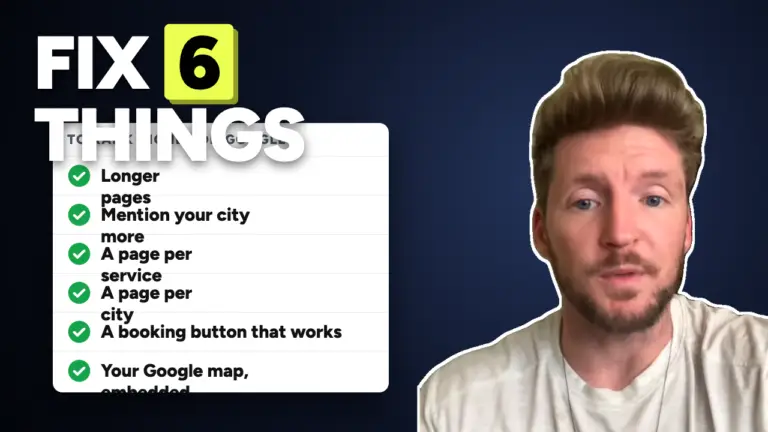
A dedicated page that explains the service, who it’s for, what the process looks like, and where the business offers it gives Google a much clearer reason to show that business for that search.
Weak in a specific area? Look at what you have for that area.
If the map goes red in one part of the service area, I look at whether the business has anything that connects it to that area.
That might mean:
- A service-area page for that city, if the business genuinely works there and has something useful to say about it
- Photos and project examples from jobs completed in that area
- Google Business Profile posts about work done in that area
- Making sure the service areas listed on the profile match where the business actually works
What I don’t do is create dozens of near-identical city pages that only swap out the city name. Those pages don’t help visitors, and Google treats them as doorway pages. I’d rather build a smaller number of pages that actually have something to say.
Weak everywhere? Start with the profile.
If the map is mostly red for the business’s main category, the first place I look is the Google Business Profile itself. Categories, services, description, photos, reviews.
I walked through what that looks like in How I Improved a Client’s Google Business Profile Ranking in 30 Minutes.
What a Rank Map Can’t Change
It’s worth being honest about one thing.
Google says local results are based mainly on relevance, distance, and prominence (source). Content helps with relevance. Reviews and links help with prominence.
Distance is the one you can’t do much about. A business will almost always rank better close to its location than on the far edge of its service area.
So the goal isn’t to turn every point on the map green. It’s to push visibility out as far as it can realistically go for the searches that bring in the best jobs.
Rank Maps Also Show Whether the Work Is Working
The last reason I use rank maps every day: they let us measure.
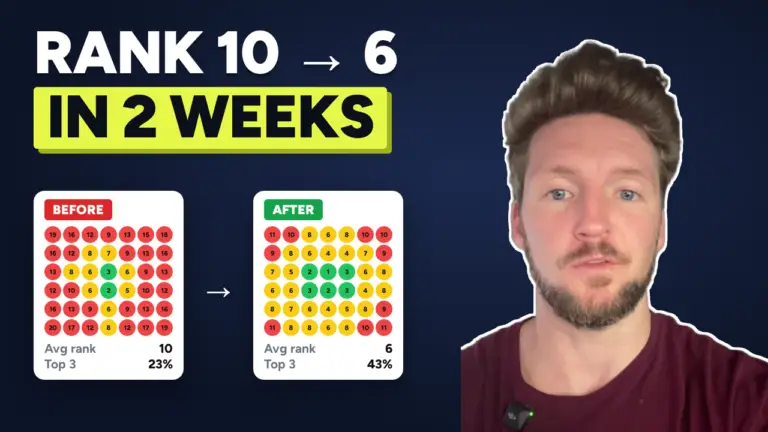
When we publish a new service page or clean up a Google Business Profile, I run the same scans again a few weeks later. If the green area grows for that search, we know the work moved the needle. If it doesn’t, we know to try something else.
You can see what that looks like in a real project in From Rank 61 to Rank 5 in 35 Days.
The Takeaway
A local rank map tells you three things:
- Where you currently rank across your service area
- What content you need to create on your website and Google Business Profile to improve your visibility
- What your next best move is
That’s a lot more useful than searching your own business name from your desk and hoping for the best.
Want to See Your Rank Map?
If you’re a business that serves your local area and you want to know where you’re ranking right now, what content you need to improve your visibility, and what your next best move is, I’ll run rank maps for your business for free.
You’ll get up to three rank heatmaps across your service area and a personal video walkthrough explaining what I see.